
Does Dragon Copilot Work on Mac? What Physicians Need to Know
Yes, physicians can access Microsoft Dragon Copilot from a Mac through its browser-based experience. The more important question is whether it fits your EHR, microphone, and preferred way of documenting patient care.
Yes, Dragon Copilot can be used on a Mac through the web
Dragon Copilot includes a web application that physicians can access without installing the Windows desktop client. Microsoft currently supports the latest versions of Microsoft Edge and Google Chrome for the standalone web experience.
You will also need to enable third-party cookies and allow the browser to use your microphone. Microsoft does not currently list Safari as a supported browser for the standalone Dragon Copilot web application.
What using Dragon Copilot on a Mac looks like
The browser makes Dragon Copilot accessible from macOS, but the experience still depends on the clinical systems and documentation workflow around it.
Open a supported browser
Use the latest version of Microsoft Edge or Google Chrome and sign in to the Dragon Copilot web application with your licensed account.
Allow microphone access
Dragon Copilot needs permission to use the microphone selected in your Mac and browser settings for dictation or ambient capture.
Review the generated content
Dragon Copilot can help create clinical documentation, but the physician remains responsible for reviewing, editing, and completing the note.
Browser access does not make every workflow identical
Running Dragon Copilot through a browser is different from using a native desktop application. Microsoft describes its Windows desktop client as the most advanced option for delivering dictated content directly into an EHR without a formal integration.
On a Mac, your practical experience can depend on your EHR, browser, security settings, microphone, and how you want to move generated documentation into the patient record.
- Your EHR and version
- Your preferred browser
- Your microphone or ambient audio device
- Your organization’s network and security policies
- Whether you dictate, record encounters, or use both
- How generated content moves into the final chart
Dragon Copilot and Dragon Medical One solve different needs
The right choice depends less on the product name and more on how you prefer to document during and after patient visits.
Dragon Copilot
Dragon Copilot combines speech-driven documentation with ambient capture and AI-assisted note creation. It can support physicians who want to spend less time manually building each note.
- Browser-based access on a Mac
- Ambient documentation workflows
- AI-assisted clinical note creation
- Dictation and voice-driven tools
- Web, mobile, and Windows desktop experiences
Dragon Medical One
Dragon Medical One remains a strong option for clinicians working in Windows who prefer real-time speech recognition, voice commands, templates, and direct dictation at the cursor.
- Real-time medical dictation
- Voice commands and templates
- Cursor-focused documentation
- Windows-based workflow
- Training and workflow optimization
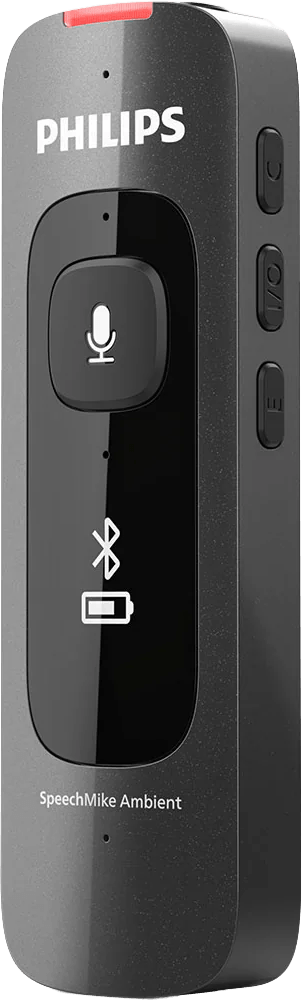
Ambient documentation starts with clear audio
A Mac may already have a built-in microphone, but the best audio setup depends on the room, the physician’s position, background noise, and whether Dragon Copilot needs to capture one speaker or an entire patient conversation.
Philips SpeechMike Ambient provides a purpose-built option for high-quality single- and multi-speaker audio capture in clinical environments. The Dragon People can help determine whether it fits your room and documentation style.
Which Dragon workflow fits your clinical day?
You primarily work on a Mac
Start by reviewing the browser-based Dragon Copilot workflow and confirming how it works with your EHR.
Review Mac optionsYou want ambient and AI-assisted notes
Dragon Copilot is the primary path when you want to capture visits, generate drafts, and reduce manual note creation.
Explore Dragon CopilotYou prefer direct dictation in Windows
Dragon Medical One may fit better when you rely on real-time dictation, commands, templates, and cursor control.
Explore Dragon Medical OneConfirm your Mac workflow before choosing a product
The Dragon People will review your Mac, EHR, browser, microphone, and documentation preferences before recommending the right path.
Dragon Copilot on Mac
Does Dragon Copilot work on macOS?
Physicians can access Dragon Copilot through its browser-based web application on a Mac. The final workflow depends on the browser, EHR, microphone, security settings, and documentation process.
Which Mac browser should I use?
Microsoft currently supports the latest versions of Microsoft Edge and Google Chrome for the standalone Dragon Copilot web application. Safari is not currently included in Microsoft’s supported browser list.
Do I need to install Windows on my Mac?
Not for access to Dragon Copilot web. The browser application does not require the Windows desktop client. Your EHR or other clinical applications may have separate requirements.
Will Dragon Copilot dictate directly into my EHR on a Mac?
That depends on your EHR, browser, integration, and workflow. Microsoft describes the Windows desktop application as its most advanced option for delivering content directly into an EHR without an integration. The Dragon People can review your Mac workflow individually.
Is Dragon Medical One still an option?
Yes. Dragon Medical One remains available for Windows-based clinicians who prefer traditional real-time dictation, voice commands, templates, and cursor-focused documentation.
Do I need a separate microphone for Dragon Copilot?
Dragon Copilot can use a microphone recognized by the browser, but the right device depends on whether you dictate directly or capture a multi-speaker patient encounter. A professional ambient microphone may provide a better fit for clinical conversations.
Technical requirements can change. Review current Microsoft Dragon Copilot web requirements or contact The Dragon People before deployment.